![Realtair RGB Green Box Logo.jpg]](https://help.realtair.com/hs-fs/hubfs/Realtair%20RGB%20Green%20Box%20Logo.jpg?height=50&name=Realtair%20RGB%20Green%20Box%20Logo.jpg)
Once you have created your Sign Anything document, you can preview the document, make changes, send it to your clients and complete the signing process.
Step 1. How to Activate the preview screen.
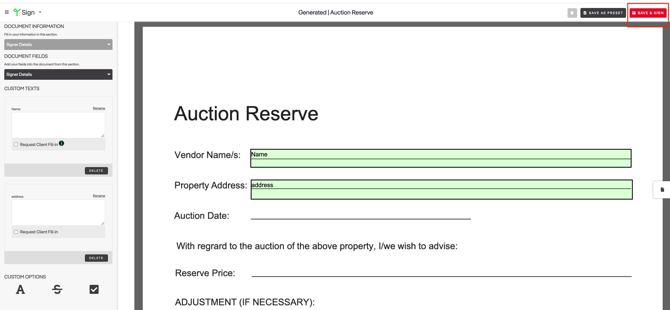
- Click Save & Sign in the top-right corner of the screen.
- You will be taken to the Preview screen.
From here, you can review your document, make further edits and manage the signing process.
Step 2. Review Your Document
The Preview screen gives you an overview of your document and its signing status.
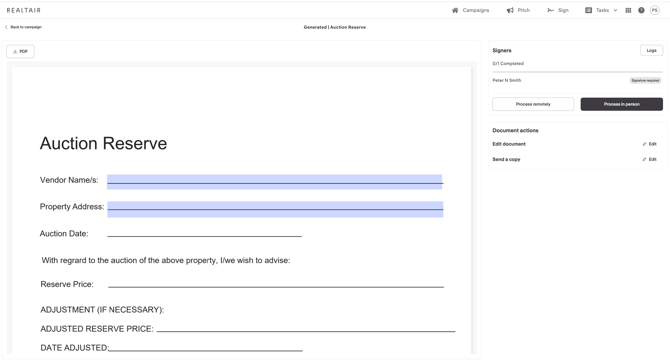
On the top left-hand side of the screen, select Download PDF to download a copy of your document.
You can choose to download:
- An editable PDF
- A non-editable PDF
In the centre of the screen, you will see a preview of your Sign Anything document.
Any fields highlighted in blue are fields that still need to be completed.
Review these fields before sending the document to ensure everything required has been included.
On the right-hand side of the screen, you can see the people associated with the document and their current signing status.
This allows you to quickly identify:
- Who has completed the document
- Which signatures are still required
Step 3. How to Edit your Document
At the right hand side of the Preview screen, you will find your Document Actions.
Select Edit Document if you need to make changes.
This will take you back to the Sign Anything editor, where you can:
- Add or update fields
- Update your presets
- Add additional signers
- Make other required changes to the document
Once your changes are complete, save the document to return to the Preview screen.
Step 4. How to Send
You can also use Send a Copy when someone needs to receive a copy of the document but isn't required to sign it.
For example, you may want to send a copy to:
- A solicitor or conveyancer
- An administrator
- Another relevant party
Add the recipient's details as required.
There are two ways to complete the signing process:
Option 1: Sign Remotely
Use Remote when your client will complete the document from their own device.
- Select Remote.
- Choose the appropriate action for the recipient, such as Sign or Edit / Client Fill.
- Confirm the recipient's email address.
- Add anyone who should receive a copy, if required.
- Select Review Message to review the message that will be sent to the recipient.
- Update the message if required.
- Click Send Message.
The document will then be sent to the selected recipients.
Option 2: Sign In Person
Use In Person when you are with your client and they are completing the document on your device.
As best practice, hand the device to the client so they can review and complete their own signing process.
- Select Sign next to the relevant signer's name.
- You will be taken into the signing workflow.
- The signer must agree to sign electronically.
- At the top of the screen, you can see how many signatures need to be completed.
- Select Start to be taken to the first required signature field.
- Select Sign and complete the signature.
- Continue through each required signature field.
- Once all required signatures have been completed, select Finish.
You will then be redirected back to the Preview screen.
Once a signer has completed their signatures, their status will update on the Preview screen.
Select Show More beneath the signer to see additional information and confirm that their signature has been completed.
This makes it easy to track which parties have completed their requirements and which signatures are still outstanding.
To see more information about a completed signature, select View Signature Log.
The Signature Log provides an audit trail of the signing activity, including:
- Signer details
- IP address
- Who completed the signature
- Date of signing
- Time of signing
This information can be used to verify when and how the document was electronically signed.
You're DoneOnce all required parties have completed their signatures, you can use the Preview screen to confirm that the document has been fully executed and review the Signature Log where required.
Step 5: After Signing - Completion Certificate and Storage
Upon completion, a Completion Certificate is automatically generated and bundled with the signed document. This certificate is a verified record providing details of who signed, when they signed, and their IP address.
The final, signed document and its certificate are securely and permanently stored within your campaign folder under the Sign tab for you to access at any time.