![Realtair RGB Green Box Logo.jpg]](https://help.realtair.com/hs-fs/hubfs/Realtair%20RGB%20Green%20Box%20Logo.jpg?height=50&name=Realtair%20RGB%20Green%20Box%20Logo.jpg)
The default Pay Later fee has changed from 6.9% to 7.65%.
This updated default applies to newly onboarded offices only. Existing offices will keep their current Pay Later fee unless it is manually updated.
How do I update the Pay Later fee in Pitch? (Admin)
- Open the app switcher from your campaign dashboard (top right)
- Click Settings.
- Select Offices.
- Choose the office you want to update.
- Under Realtair Pitch, click Go to details.
- Click Settings.
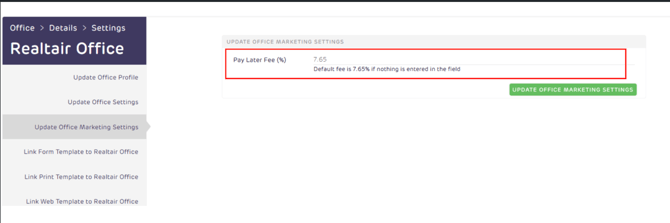
- Open the Update Office Marketing Settings tab.
- Enter the percentage fee to apply when a user selects the Pay Later option in a campaign.
- Click Submit to save your changes.
If no value is entered in the Pay Later fee field, the default fee of 7.65% will be applied.
How do I display the Pay Later option in a quote?
To display the Pay Later option in the quote:
- Open the quote in the online form in Pitch.
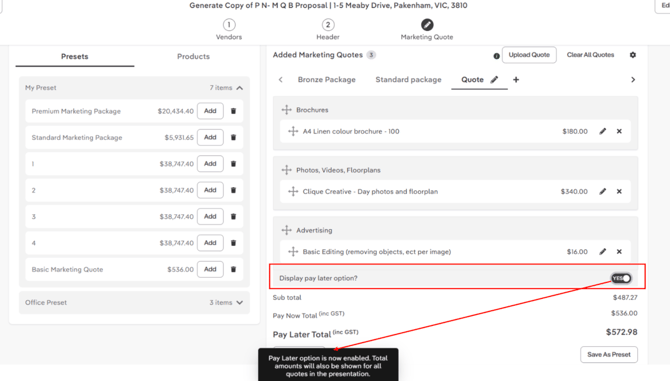
- Scroll to the Pay Later option in the bottom-right corner.
- Set Display Pay Later Option? to YES.
If your office's Pay Later fee has changed and you need to resend the presentation, you will need to resubmit the online form so the updated pricing is reflected
How is pricing shown in campaigns?
|
Term |
Description |
|---|---|
|
Subtotal |
Price exclusive of GST. |
|
Pay Now Total / Total |
Price inclusive of 10% GST. |
|
Pay Later Total |
Price inclusive of the Pay Later fee configured in office settings. If no custom value is entered, the default fee of 7.65% is used. |