![Realtair RGB Green Box Logo.jpg]](https://help.realtair.com/hs-fs/hubfs/Realtair%20RGB%20Green%20Box%20Logo.jpg?height=50&name=Realtair%20RGB%20Green%20Box%20Logo.jpg)
Before you start
Make sure you have:
- An existing Victorian property listing or campaign.
- Access to edit the listing or complete its activation.
- The property’s Price Guide.
- The required Property Price Statement document.
The Price Guide is required when you manually activate a listing or edit an auto-activated listing. The Property Price Statement is also required and may be prefilled from your CRM.
Step 1: Open the listing or activation form
- Log in to Realtair.
- Open the relevant Victorian campaign or property listing.
- Select Sell.
- Open the activation form or listing details.
If your office uses a CRM integration, check the imported property details before continuing.
Step 2: Enter the Price Guide
- Find the Price Guide field.
- Enter the property’s Price Guide as free text.
- If your CRM has prefilled the field, check that the value is correct.
- Save the listing or continue with the activation form.

The Price Guide is required for every Victorian listing, regardless of the method of sale.
Step 3: Upload the Property Price Statement
- Open the document upload area.
- Select Property Price Statement.
- Upload the required document.
- If your CRM has supplied the document, confirm that the correct file is attached.
- Check the property checklist.
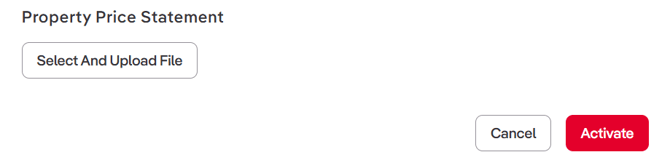
The checklist changes to Done when a valid Property Price Statement is attached.
The previous Statement of Information label now appears as Property Price Statement in the activation and property workflows.
Step 4: Check the property checklist
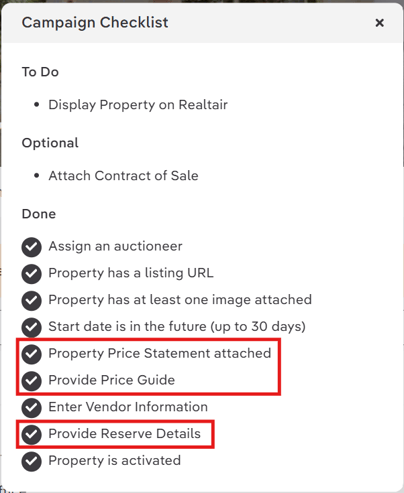
Confirm that the following items appear in the Done section:
- Property Price Statement attached
- Provide Price Guide
- Provide Reserve Details for auctions
Complete any item that remains in To Do before continuing.
Step 5: Check the public listing
After you save the listing:
- Open the public listing page.
- Confirm that the Price Guide appears.
- Confirm that the Property Price Statement link appears.
- If the listing is an auction, confirm that the Reserve Price appears when supplied.
- Generate a new Share QR code PDF.
- Check that the PDF shows the same information as the public listing.
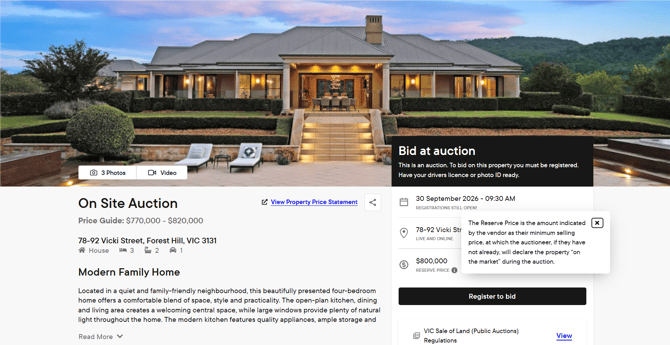
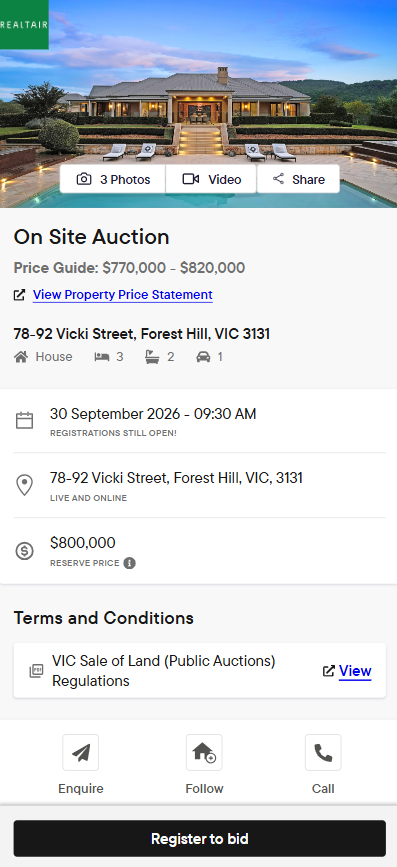
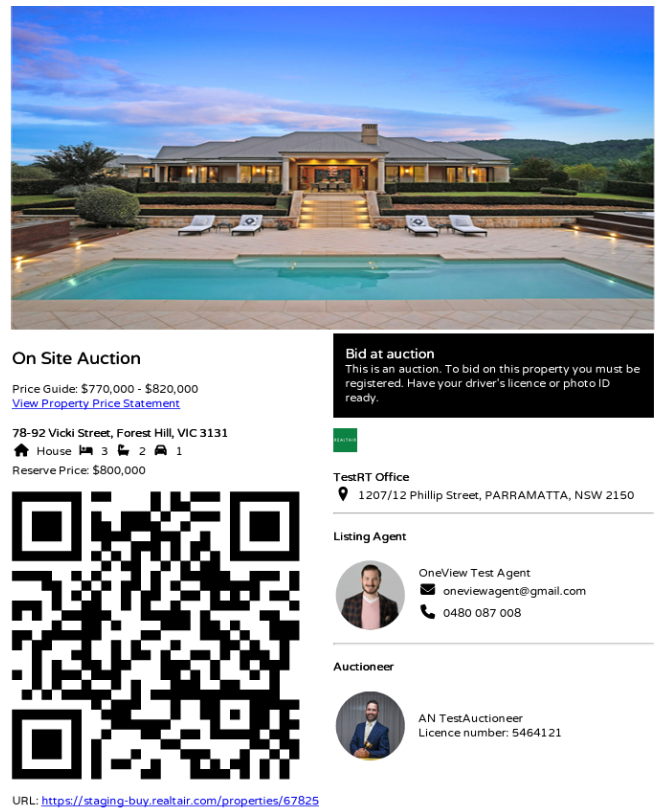
Public listings display the Price Guide and Property Price Statement link. Victorian auction listings display the Reserve Price when supplied. Share QR code PDFs reflect the same information.
What happens for Victorian Private Treaty listings?
The Display Price Guide option is removed for Victorian listings. When you provide a Price Guide, Realtair displays it automatically on a Victorian Private Treaty listing.
FAQs
Why is the Price Guide field missing?
Check that:
- The property address is in Victoria.
- You selected a supported method of sale.
- You’re using the current activation or property details workflow.
- You’ve refreshed the form.
If the listing was auto-activated, check the Details section to see whether your CRM has supplied a value.
What if the checklist remains in To Do after I enter a Price Guide?
Check that:
- The Price Guide isn’t blank.
- You saved the listing or resubmitted the form.
- The value remains after you reload the page.
Why can’t I upload the Property Price Statement?
Check that:
- The file was uploaded successfully.
- The document appears in the Attached Files or Documents section after you refresh the page.
- A CRM-prefilled document is visible before you try to replace it.
Why does the public listing show a 404 error?
Check that:
- The listing has a Property Price Statement attached.
- The document hasn’t been removed.
- The listing hasn’t changed its method of sale.
After correcting the listing, republish or regenerate the public output and test it again.
Why is the Share QR code PDF outdated?
Follow these steps to update it:
- Save all listing changes.
- Generate a new Share QR code PDF.
- Confirm that the Price Guide, Reserve Price and Property Price Statement are present in the listing before escalating the issue.