![Realtair RGB Green Box Logo.jpg]](https://help.realtair.com/hs-fs/hubfs/Realtair%20RGB%20Green%20Box%20Logo.jpg?height=50&name=Realtair%20RGB%20Green%20Box%20Logo.jpg)
Note: This feature is only available for clients accessing Realtair via Ignite.
Step 1: Navigate to your Agent Profile
-
From the Campaign Dashboard, click your initials in the top‑right corner.
-
Select Manage Profile.
-
Select the Pitch tab.
Step 2: Set up ratings and reviews from REA
-
Scroll down to the Ratings and reviews section, just under the Biography.
-
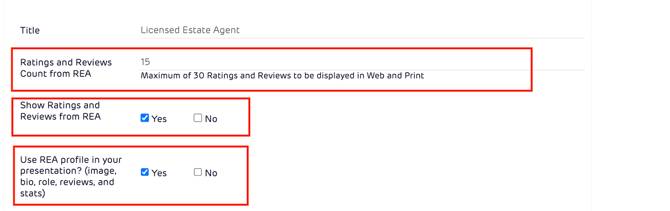
Choose how many ratings and reviews to pull from REA:
- Use the field to type the number of reviews.
- You can choose up to 30 reviews.
- Realtair will pull all available 4 and 5 star ratings, up to this maximum.
-
Make sure Show ratings and reviews from REA is set to Yes if you want your ignite reviews to appear in your presentations.
-
If you would like to use your REA profile information in your presentation (including your profile image, bio and role), set Use REA profile in presentation to Yes.
Step 3: Save your changes
-
Scroll to the bottom of the page.
-
Click Update agent profile to save your changes.
Your future Pitch presentations will now use your REA ratings and reviews (and profile information, if enabled) wherever a testimonial layout or agent profile block is used in your templates.
FAQ's
-
Can I choose which reviews appear?
No. Realtair automatically pulls your latest 4–5 star reviews from realestate.com.au, up to the maximum number you’ve set in your profile.
-
I can't see a review that I want to use, what should I do? - As long as the review is less than 12 months old and one of your 30 most recent reviews you can increase the number of reviews in the settings in your agent profile to include your desired review.
-
Is there a limit to the number of reviews I can include. - You can enable up to 30 reviews on your Agent Profile page, and only reviews that are less than 12months old can be included in your presentations
-
I don't need this integration, how can I switch it off? - you can opt out of this service from your Agent Profile Page by selecting no under Show Ratings and Reviews from REA