![Realtair RGB Green Box Logo.jpg]](https://help.realtair.com/hs-fs/hubfs/Realtair%20RGB%20Green%20Box%20Logo.jpg?height=50&name=Realtair%20RGB%20Green%20Box%20Logo.jpg)
Step-by-Step Guide
Accessing Your Realtair Account
-
Sign In: Navigate to accounts.realtair.com and sign in with your credentials.
-
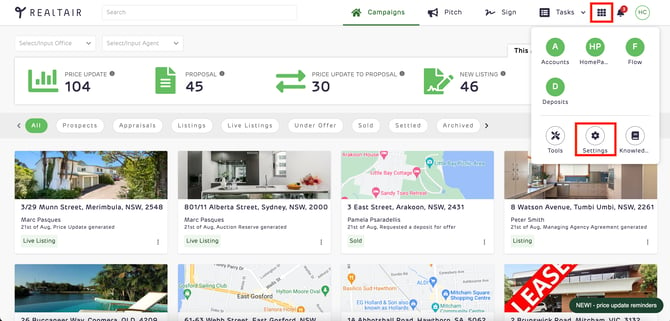
App Switcher: Once signed in, access the "App Switcher" feature.
Configuration Settings
-
Settings: Click on the "Settings" option.
-
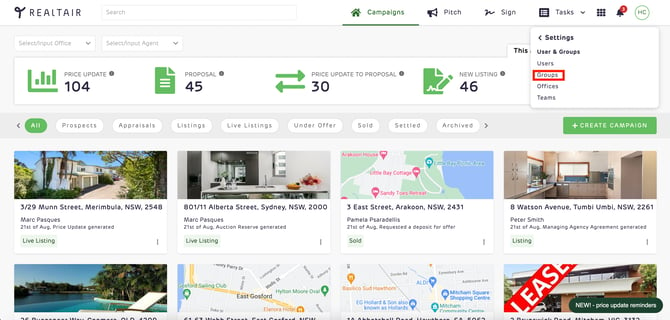
Group Selection: From the settings menu, select "Groups". Ensure that you choose 'Groups' for linking Cotality.
Linking Cotality
-
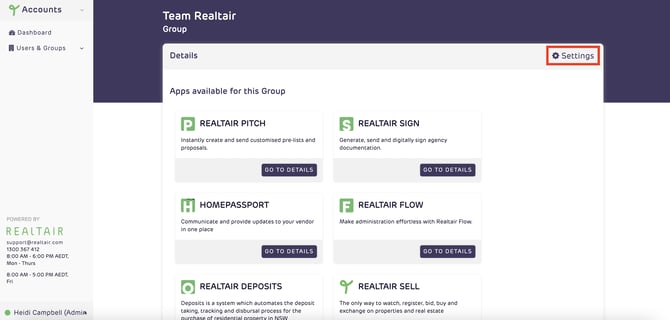
Settings Navigation: Click on "Settings" again and refer to the left-hand menu.
-
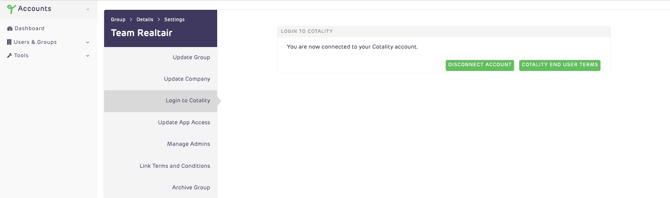
Login to Cotality: Select "Login to Cotality", which will redirect you to the Cotality login screen.
-
Input Credentials: Enter your Cotality login information. Upon successful login, your account will be synchronised with Cotality.
Verification and Disconnection
-
Verify Connection: To confirm the linkage, go to "Groups", then "Details", followed by "Settings".
-
Disconnect: If you wish to disconnect your account from Cotality, this can be easily done on the same page with a simple click.
Support
If you encounter any issues or require further assistance, please do not hesitate to contact our dedicated support team at support@realtair.com. We are always ready to assist you.