![Realtair RGB Green Box Logo.jpg]](https://help.realtair.com/hs-fs/hubfs/Realtair%20RGB%20Green%20Box%20Logo.jpg?height=50&name=Realtair%20RGB%20Green%20Box%20Logo.jpg)
What’s new?
Pitch now provides clearer SMS delivery status updates after you send a presentation by SMS. You can continue working while the status is being confirmed, then check the latest status from the presentation preview page.
SMS delivery status updates include:
- Faster sending: Continue working without waiting for the final SMS result.
- Clearer statuses: See whether an SMS is Sent, Pending or Failed.
- Recheck status: Refresh the delivery status from the presentation preview page at any time.
Learn more about how it works.
How to send an SMS and check its status
- Open the presentation you want to send.
- Select Send SMS.
- Check that the recipient’s mobile number is correct.
- Send the SMS.
- Find the SMS delivery status on the presentation preview page.
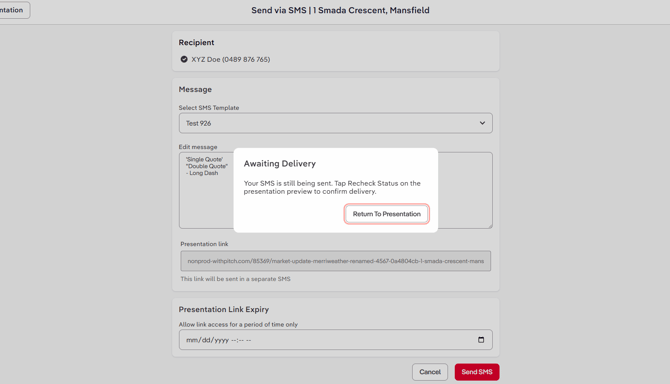
If the status is Pending or Awaiting Delivery, select Recheck status and wait for the page to update with the latest status

What do the SMS statuses mean?
|
Status |
What it means |
What to do |
|---|---|---|
|
Sent |
The SMS has been sent successfully. |
No action is usually needed. If the recipient has not receive it, check the mobile number, mobile coverage and blocked sender settings. |
|
Pending or Awaiting delivery |
The SMS has been submitted, but the final delivery result has not been confirmed yet. |
Select Recheck status to get the latest update. Pending does not mean the SMS has failed. |
|
Failed |
The SMS could not be delivered. |
Check that the mobile number is valid, then try again. Delivery can also be affected by network coverage, blocked numbers, or unsupported message content. |
Need more help?
Contact your support team and include the presentation details, recipient mobile number, and the SMS status shown on the preview page.