![Realtair RGB Green Box Logo.jpg]](https://help.realtair.com/hs-fs/hubfs/Realtair%20RGB%20Green%20Box%20Logo.jpg?height=50&name=Realtair%20RGB%20Green%20Box%20Logo.jpg)
Before you start
Make sure you have:
- An existing Victorian auction or fixed-date sale listing.
- Access to edit the listing.
- The recommended Reserve Price.
- The reasons for recommending the Reserve Price.
- The vendor’s details.
You do not need to enter the final Reserve Price before generating the Reserve Letter.
Step 1: Open the Reserve section
- Log in to Realtair.
- Open the relevant Victorian campaign or property listing.
- Select Sell.
- Open the listing details.
- Open the Reserve section.
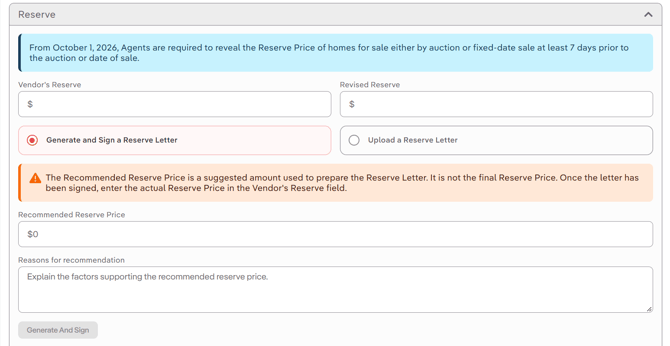
Step 2: Enter the recommendation
- Select Generate and Sign a Reserve Letter.
- Enter the Recommended Reserve Price.
- Enter the Reasons for recommendation.
- Select Generate and Sign.
Realtair opens the online form in a new browser tab.
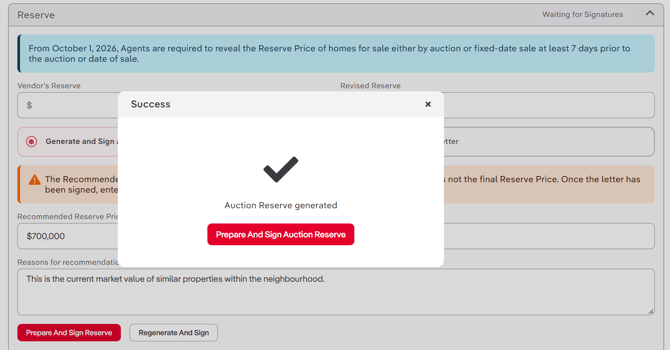
Step 3: Check the sale details
-
Review the information on the:
- Vendors page
- Sale Details page
-
Add or update any details as needed.
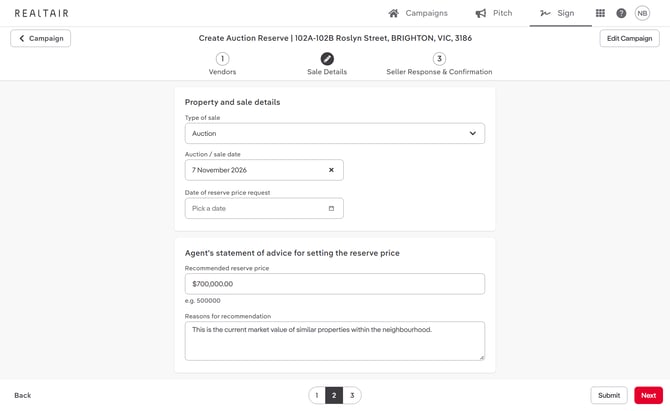
Step 4: Choose how the vendor will respond
If the vendor is present
- Ask the vendor to complete the Seller Response & Confirmation page.
- Select Finish.
- Continue with Sign in person.
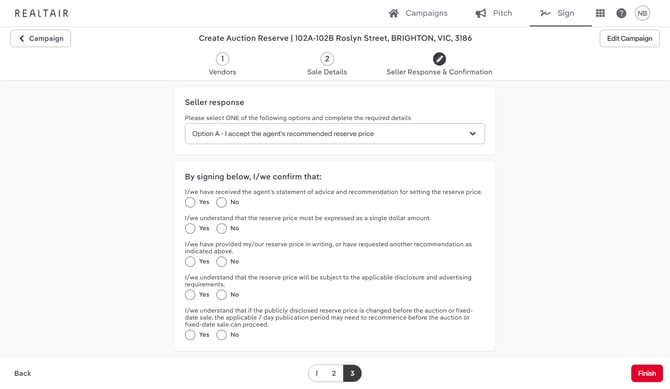
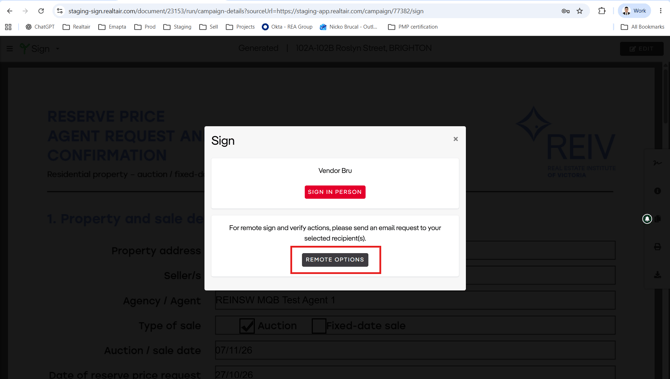
If the vendor is not present
- Leave the Seller Response & Confirmation page empty.
- Select Finish.
- Open Remote options.
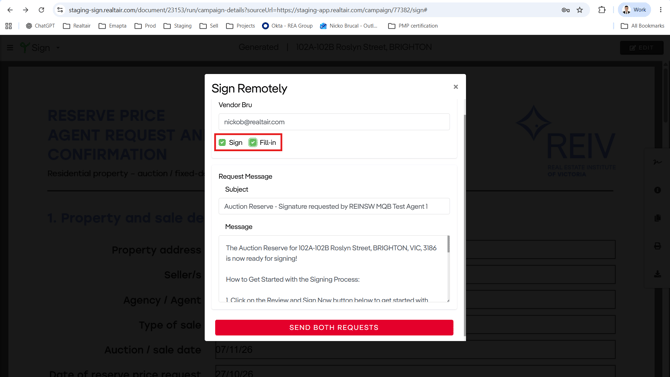
- Select both Sign and Fill-in.
- Select Send both requests.
Note: Only one vendor can complete the fill-in request.
Step 5: Ask the vendor to review the letter
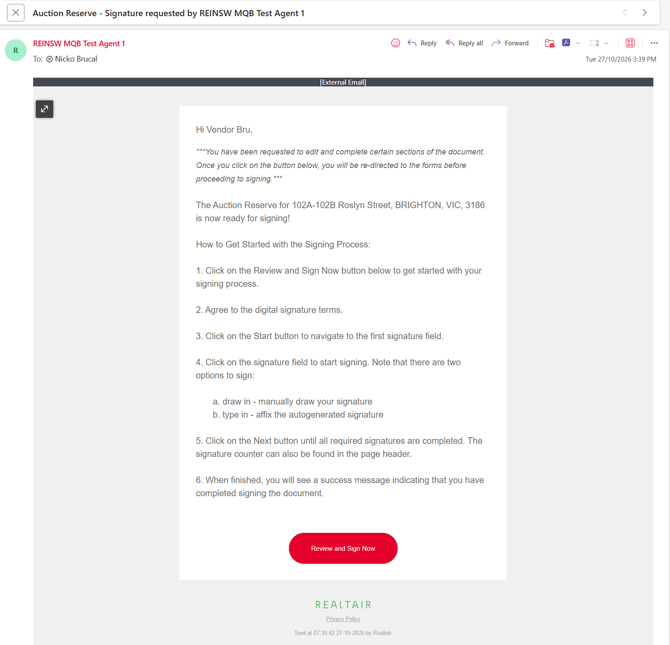
The selected vendor receives an email.
Ask them to:
- Open the email.
- Select Review and Sign Now.
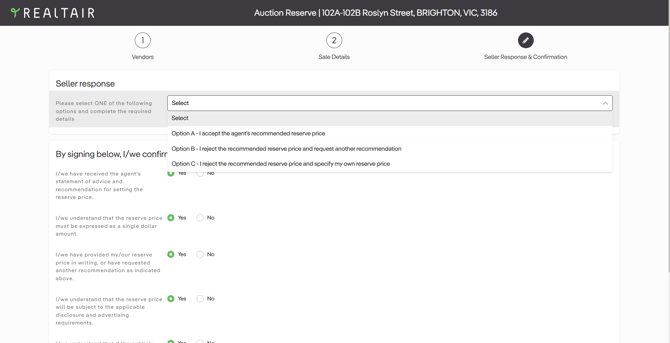
- Review the recommended Reserve Price and reasons.
The vendor can accept the recommended Reserve Price or reject it and provide a different Reserve Price.
Step 6: Complete the signing
The vendor should sign the Reserve Letter only after agreeing to the recommended Reserve Price or entering an alternative Reserve Price.
To sign the letter, the vendor should:
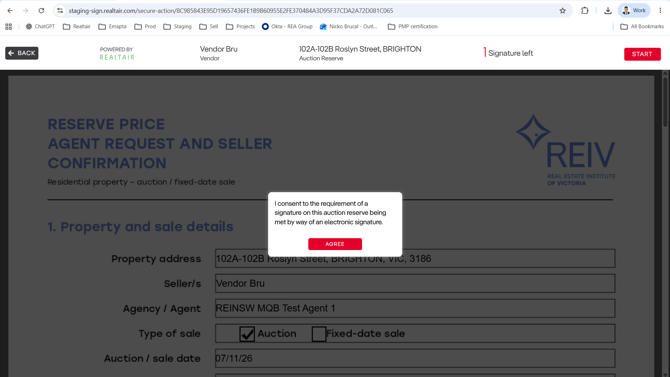
- Select Submit. This redirects them to the signing page.
- Select Agree.
- Select Start.
- Complete the signature fields.
- Sign the Reserve Letter.
Step 7: Enter the agreed Reserve Price
After the Reserve Letter is signed:
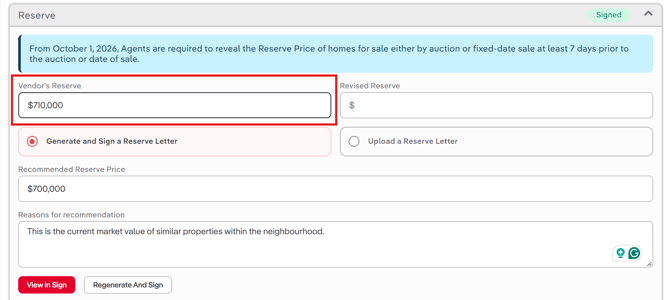
- Return to the Reserve section in the Sell Details page.
- Enter the agreed amount in the Vendor’s Reserve field.
- Check that the value has saved.
- Return to the property checklist.
- Confirm that Provide Reserve Details appears in the Done section.
The signed Reserve Letter does not replace the value in the Vendor’s Reserve field. Enter the agreed Reserve Price in that field so Realtair can track and display it correctly.
FAQs
Is the Reserve Price required to generate and sign a Reserve Letter?
No. You only need to enter the Recommended Reserve Price and Reasons for recommendation to generate the letter.
Can the vendor propose a different Reserve Price?
Yes. The vendor can reject the recommended Reserve Price and specify their own during the response process.
What do I do after the Reserve Letter is signed?
Enter the agreed Reserve Price in the Vendor’s Reserve field in the Reserve section of the Sell Details page. Then check that Provide Reserve Details moves to Done in the property checklist.
What if the Reserve Letter won’t generate?
Check that:
- Generate and Sign a Reserve Letter is selected instead of Upload a Reserve Letter.
- The Recommended Reserve Price and Reasons for recommendation are provided.
If an error occurs, contact Realtair Customer Support.